

It is an irony known well to the community: FNaF World, a colorful RPG made in 2016, is often harder to run on a modern PC than the latest AAA titles. Because the game runs on the aging Clickteam Fusion 2.5 engine, it struggles to communicate with Windows 10 and 11 display drivers, leading to immediate crashes upon launch.
If you are staring at a “Failed to initialize Direct3D” error or a blank white screen, your hardware is likely fine. The issue lies in the software’s legacy dependencies. This guide provides the exact technical steps to resolve these specific runtime errors.
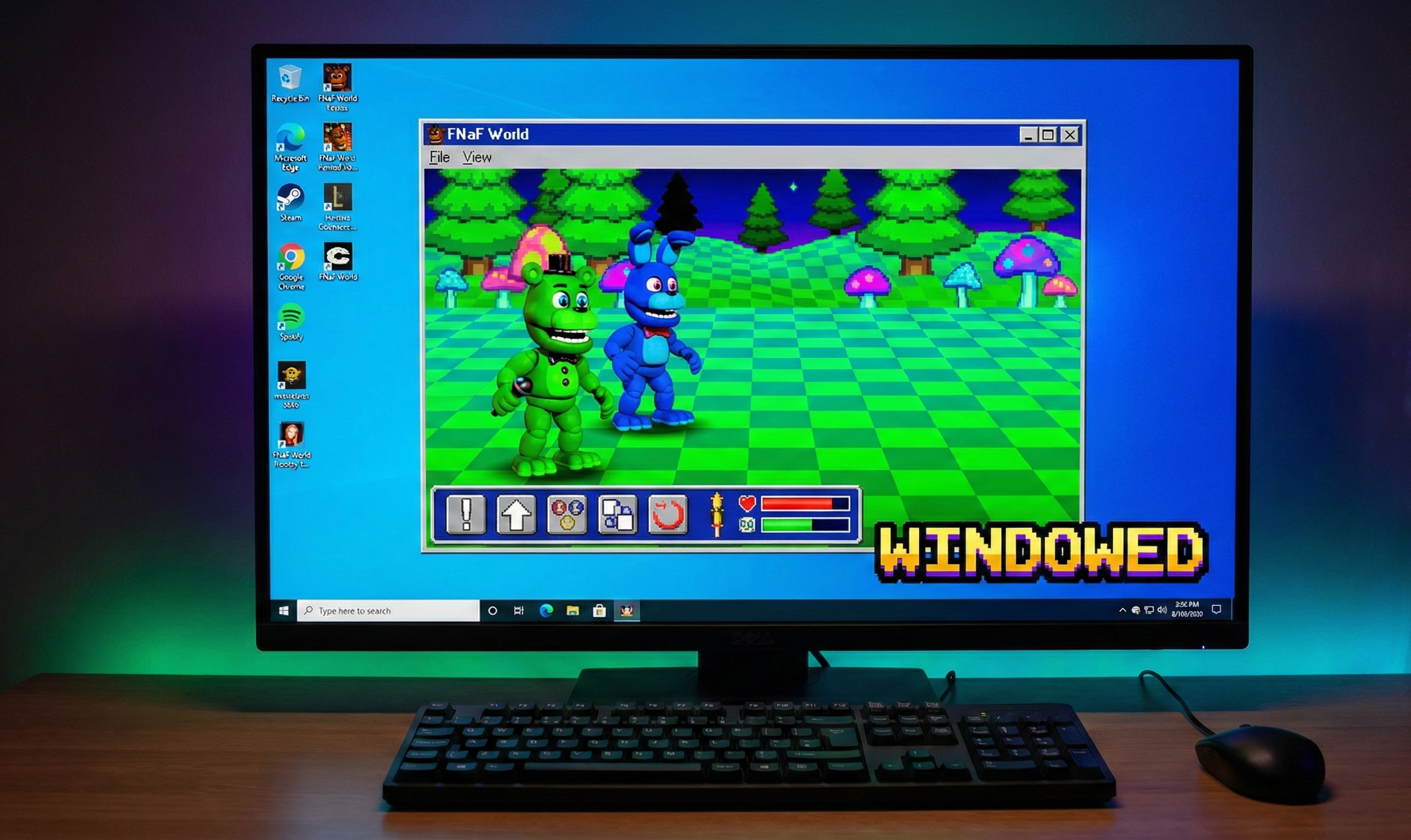
The Quick Fix (Try This First)
The “Alt+Enter” Force Protocol
90% of Direct3D errors occur because the game attempts to launch in Fullscreen Exclusive mode at a resolution your modern monitor does not support (e.g., 640×480).
- Launch FNaF World.
- Immediately press and hold
Alt+Enteron your keyboard.- This forces the engine into Windowed Mode before the graphics driver crashes.
- Once the game loads, you can resize the window manually.
Why These Crashes Happen
To fix the game permanently, you must understand the architecture failure. FNaF World relies on DirectX 9.0c, a library that Microsoft no longer includes by default in modern Windows installations.
- Direct3D Errors: Occur when the game requests a legacy display mode that your GPU driver rejects.
- White/Black Screens: Occur because the game tries to play an intro cutscene (
.wmvor.avi) using codecs that are missing from your operating system (common in Windows “N” editions). - Runtime Errors: Caused by missing Visual C++ (x86) libraries that the Clickteam runtime depends on.
Method 1: Fixing “Failed to Initialize Direct3D”
If the “Alt+Enter” trick described above is annoying to do every time, you can permanently fix the compatibility layer.
Step 1: Enable Legacy DirectPlay
Windows includes a legacy feature specifically for games of this era, but it is turned off by default.
- Press the Windows Key and type
Turn Windows features on or off. - Open the control panel menu.
- Scroll down to Legacy Components.
- Expand the folder and check the box for DirectPlay.
- Click OK and let Windows install the required files.
Step 2: Compatibility Mode
Tell Windows to treat the executable as if it were running on Windows 7.
- Right-click your
FNaF_World.exe. - Select Properties > Compatibility.
- Check “Run this program in compatibility mode for:” and select Windows 7.
- Check “Disable fullscreen optimizations”.
- Click Apply.
Method 2: Fixing the “White Screen” (Missing Media)
If you launch the game and hear audio but see only a white or black screen, your computer is missing the specific video codecs required to render the opening cutscene (the “eyes” intro).
Step 1: Identify Your Windows Version
This error is most common on Windows 10/11 N or KN editions (versions of Windows released in Europe/Korea without media players).
- Press
Win + Rand typewinver. - Check if your OS name includes “N” or “KN”.
Step 2: Install the Media Feature Pack
You cannot just download a codec pack; you must restore the official Windows Media foundation.
- Go to Settings > Apps > Optional Features.
- Click “Add a feature”.
- Type
Media Feature Packin the search bar. - Install it and restart your computer.
Note: If you are not on an N edition and still face this, ensure you verify your game files or download a clean copy from our Download Hub.
Method 3: Fixing “Runtime Error” Crashes
If the game crashes with a generic C++ Runtime message, your PC lacks the 32-bit architecture libraries. Even if you have a 64-bit computer, FNaF World is a 32-bit application and requires x86 libraries.
Step 1: Install Visual C++ Redistributables
You need the 2015-2022 combined package.
- Visit the official Microsoft Learn site for “Latest supported Visual C++ Redistributable downloads.”
- Download the file named
vc_redist.x86.exe. - Crucial: Do not just download the x64 version. You must have the x86 version for Clickteam games.
- Run the installer and restart.
Prevention: Corrupted Save Files
Sometimes, a “crash on load” is actually a corrupted save file (MFA data) rather than a graphics error. This happens if the game was closed forcefully (Alt+F4) during an auto-save.
To test this:
- Navigate to
%appdata%\MMFApplications. - Rename
fnafw1tofnafw1_backup. - Launch the game.
- If it starts correctly, your save file was corrupted.
You can attempt to repair the data using the syntax found in our Save Editor & Hacking Guide.
Frequently Asked Questions (FAQ)
I tried everything, but I still get the Direct3D error on my laptop.
If you are on a laptop with dual GPUs (Intel + NVIDIA), force the game to run on the Integrated Graphics. Clickteam Fusion often conflicts with high-end dedicated GPU drivers. Go to Graphics Settings in Windows, browse for FNaF_World.exe, and select “Power Saving” (Intel/AMD iGPU).
Does this fix work for the Steam version too?
Yes. If you have the legacy Steam version and see the “No License” error, that is a separate issue related to the July 2024 patch. Check our Steam Fix (No License) guide for that specific solution.
Why does the game run in a tiny window?
That is the native resolution (1024×768). You can maximize the window, but the pixel art may blur. There is no official “widescreen” support because the game uses static 2D assets.
Can I run FNaF World on macOS using these fixes?
Not directly. macOS does not support Direct3D or the 32-bit executable. You must use a translation layer like Wine or Crossover.
If your game is running smoothly now, check out our Chips & Bytes Tier List to optimize your party for Hard Mode.